
Import PDF
Select an existing PDF file and add it to PDF Tools for easier access.
Import PDF adds an existing document to the PDF Tools file library, giving you a clear place to access and manage it on your Android phone.
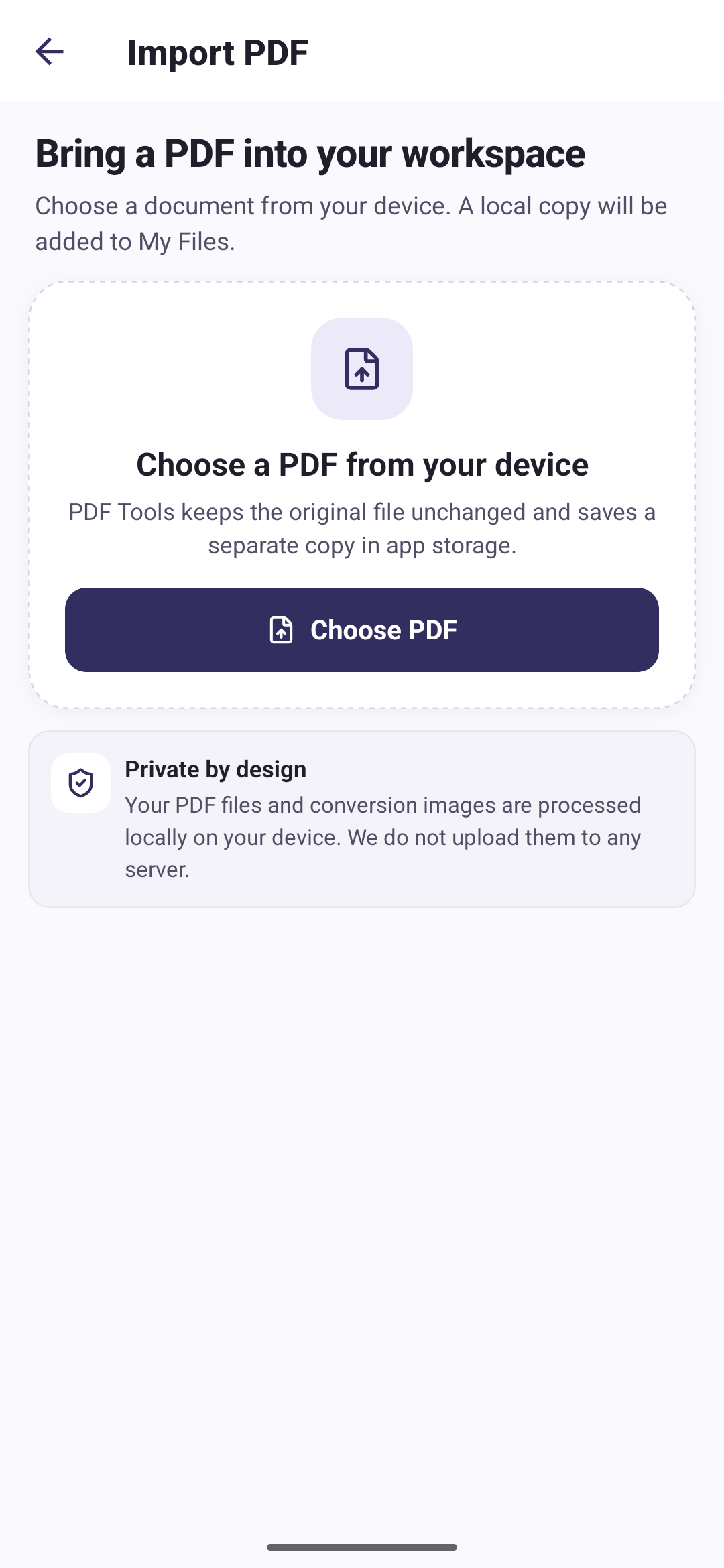
Select an existing PDF file and add it to PDF Tools for easier access.
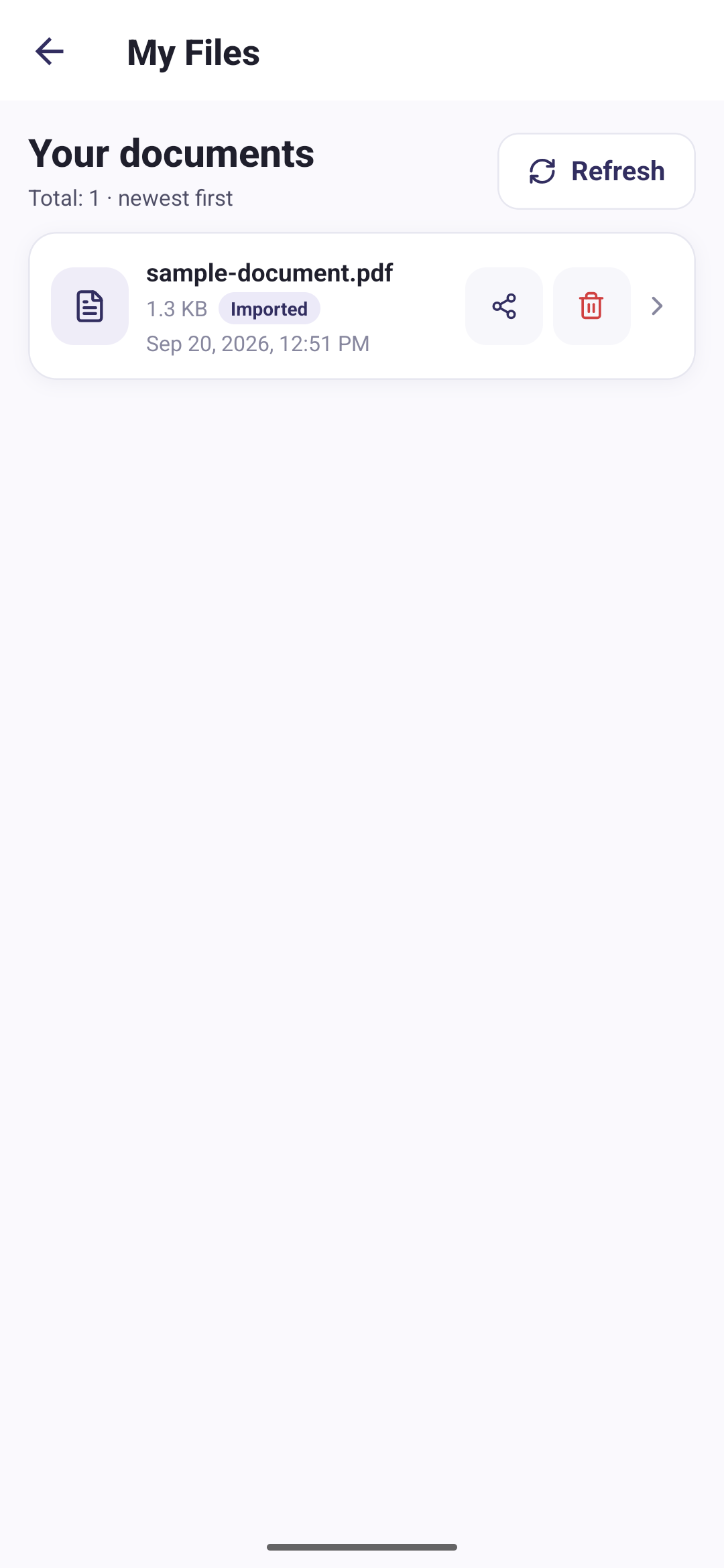
Keep imported and newly created PDF documents together in one file library.
Share a document using the apps and sharing options available on Android.
Remove a file from your managed library when you no longer need it.
Direct answers about this PDF Tools feature.
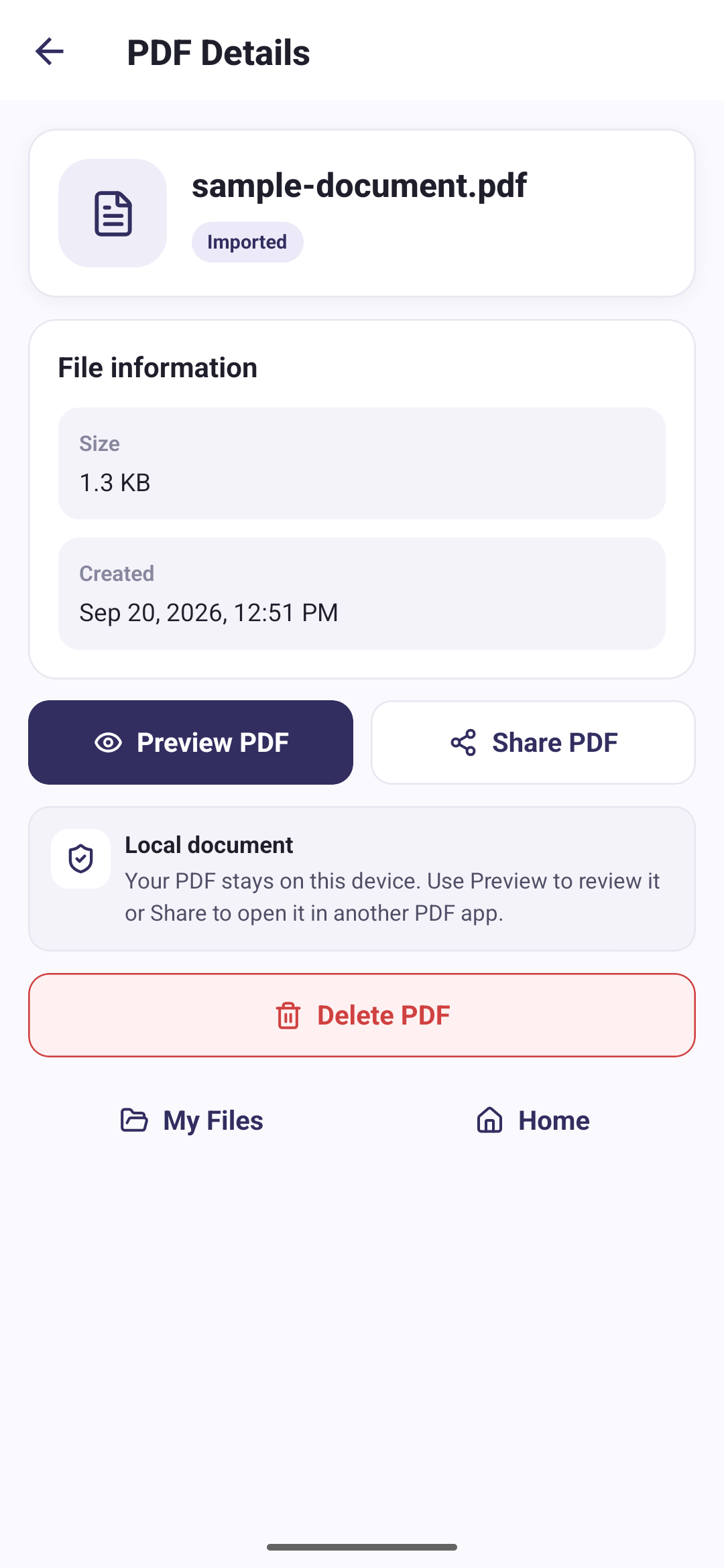
The imported document becomes available in My Files so you can view its details, share it, or delete it when it is no longer needed.
Yes. You can share an imported document using the sharing options available on your Android phone.
Yes. PDF Tools lets you delete files from your managed document library when you no longer need them.