
Every page becomes its own document
Split PDF separates the document you select into one file per page. A ten-page PDF gives you ten single-page PDFs.
- Pick one PDF from your phone
- Name the set of pages
- Get one file per page
- Keep the original untouched
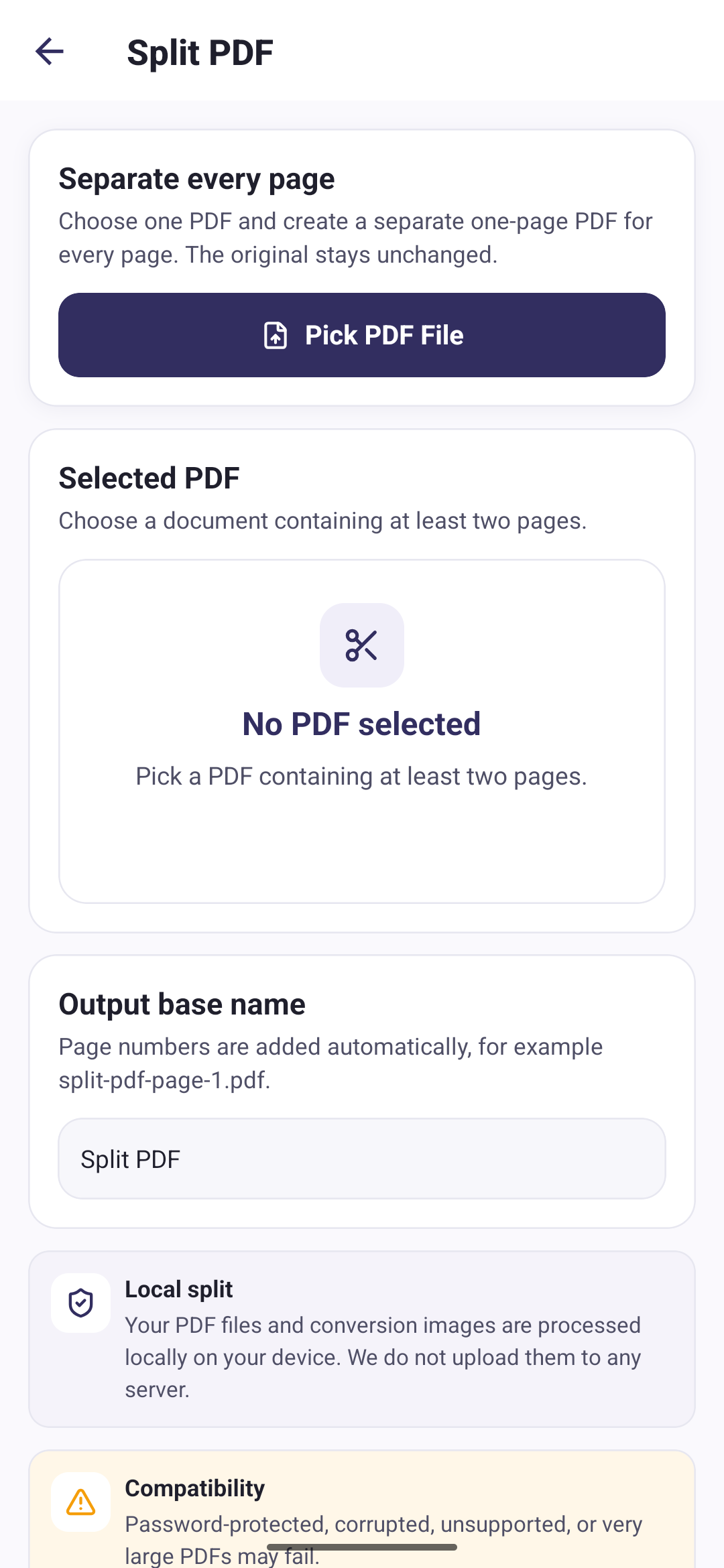
Three steps to separate pages
Pick a PDF
Choose a document containing at least two pages.
Name the output
Page numbers are added for you, for example split-pdf-page-1.pdf.
Split
Each page is written as its own PDF and added to My Files.
One file per page, numbered in order
The number of files you get back is the number of pages in the document. Each one keeps the base name you chose with its page number appended, so the set stays in order in My Files.
Splitting happens on your phone
Your PDF files and conversion images are processed locally on your device. We do not upload them to any server.
Merge PDFs back into one file
Import and manage existing PDFs
Questions about splitting PDFs
Direct answers about this PDF Tools feature.
Can I choose which pages to extract?
No. Split PDF separates every page of the document. There is no page range or custom selection, so a ten-page file always produces ten single-page files.
Does splitting delete the original PDF?
No. The document you picked is left unchanged, and the new single-page files are saved alongside it in My Files.
Why does the app ask for at least two pages?
A single-page PDF is already one page per file, so there is nothing to split. The app asks you to pick a document with two or more pages.
What happens if one page fails to save?
The app removes the pages it had already written, so you do not end up with half a set. Splitting either completes or leaves nothing behind.