
Some documents should not be readable by whoever the file eventually reaches. A payslip sent to a landlord, a signed contract forwarded three times inside a company, medical paperwork sitting in a shared downloads folder. Email and chat apps do not care what is inside an attachment, and once a PDF leaves your phone you have no say in where it gets copied next.
Adding a password is the one control that travels with the file itself. This guide explains what a PDF password actually protects, how to add one on an Android phone, how to pick a password that is worth the effort, and the one scheduling mistake that forces people to redo the whole job. The examples use PDF Tools, which encrypts on the device, but the reasoning applies to any PDF app.
What a PDF password actually does
A password on a PDF is not a lock screen drawn over readable content. The bytes of the document are encrypted, and the password is what derives the key that turns them back into pages. Open the file in a text editor and you find scrambled data rather than your text, which is why a protected PDF stays protected when someone copies it to a laptop or a USB stick.
The current standard for this is AES-256, defined by the PDF specification's standard security handler. PDF Tools produces exactly that: AES with a 256-bit key, using the revision of the specification that also hardens how the password is turned into that key. Older PDF tools sometimes still emit 40-bit or 128-bit RC4 encryption, which is a meaningfully weaker starting point.
Being clear about the limits is just as useful:
- It does not retroactively protect copies. If you already emailed the unprotected version, encrypting it now changes nothing about the copy already sitting in someone's inbox.
- It does not hide the file name.
2026-divorce-settlement.pdftells a story before anyone opens it. - It does not redact anything. Whoever has the password sees the entire document, including anything you meant to obscure with a black rectangle.
- It is only as good as the password. AES-256 with the password
password1is a strong lock on a door someone can simply guess their way through.
How to password protect a PDF on your phone
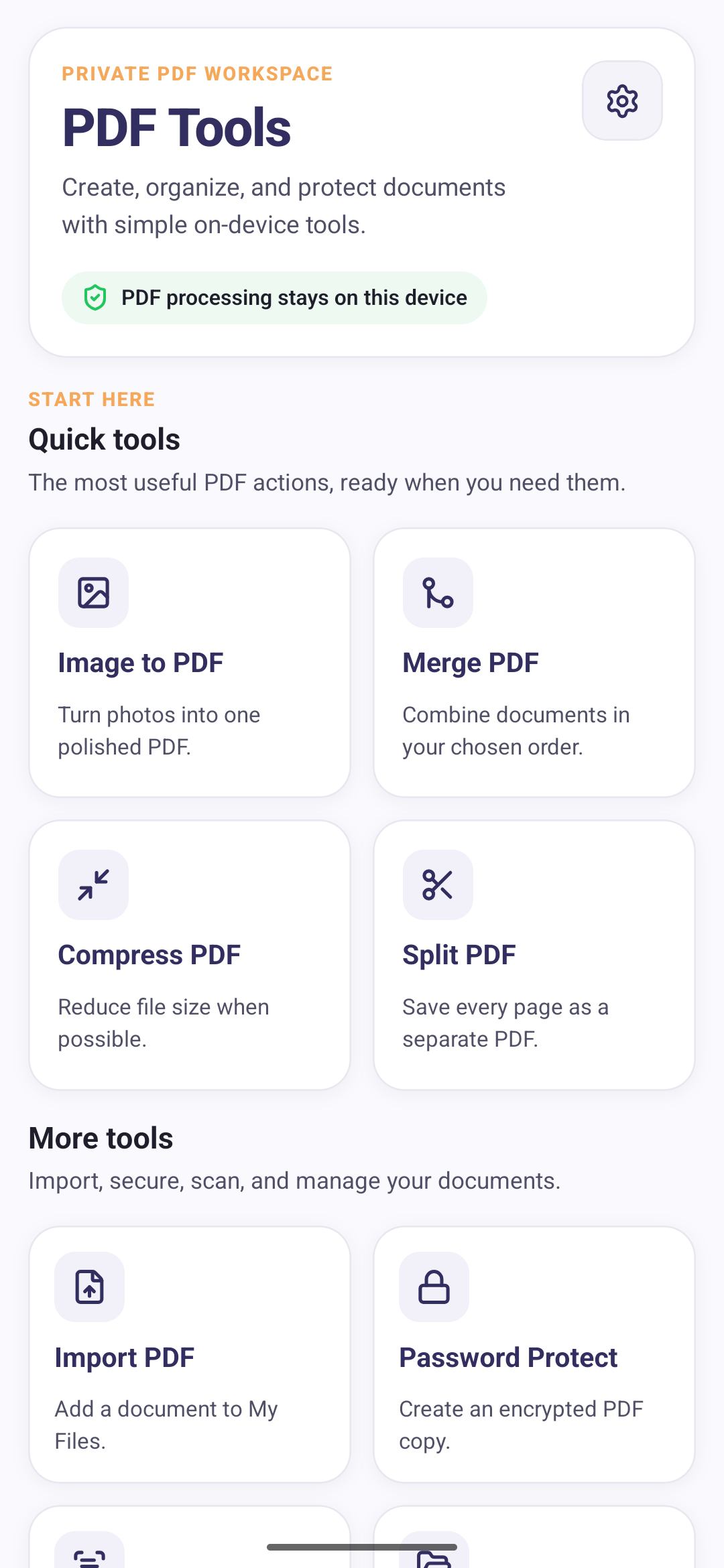
In PDF Tools, encryption lives under More tools on the home screen, alongside Import PDF and the other document-management tools, away from the ones that create files.
The flow itself is four decisions:
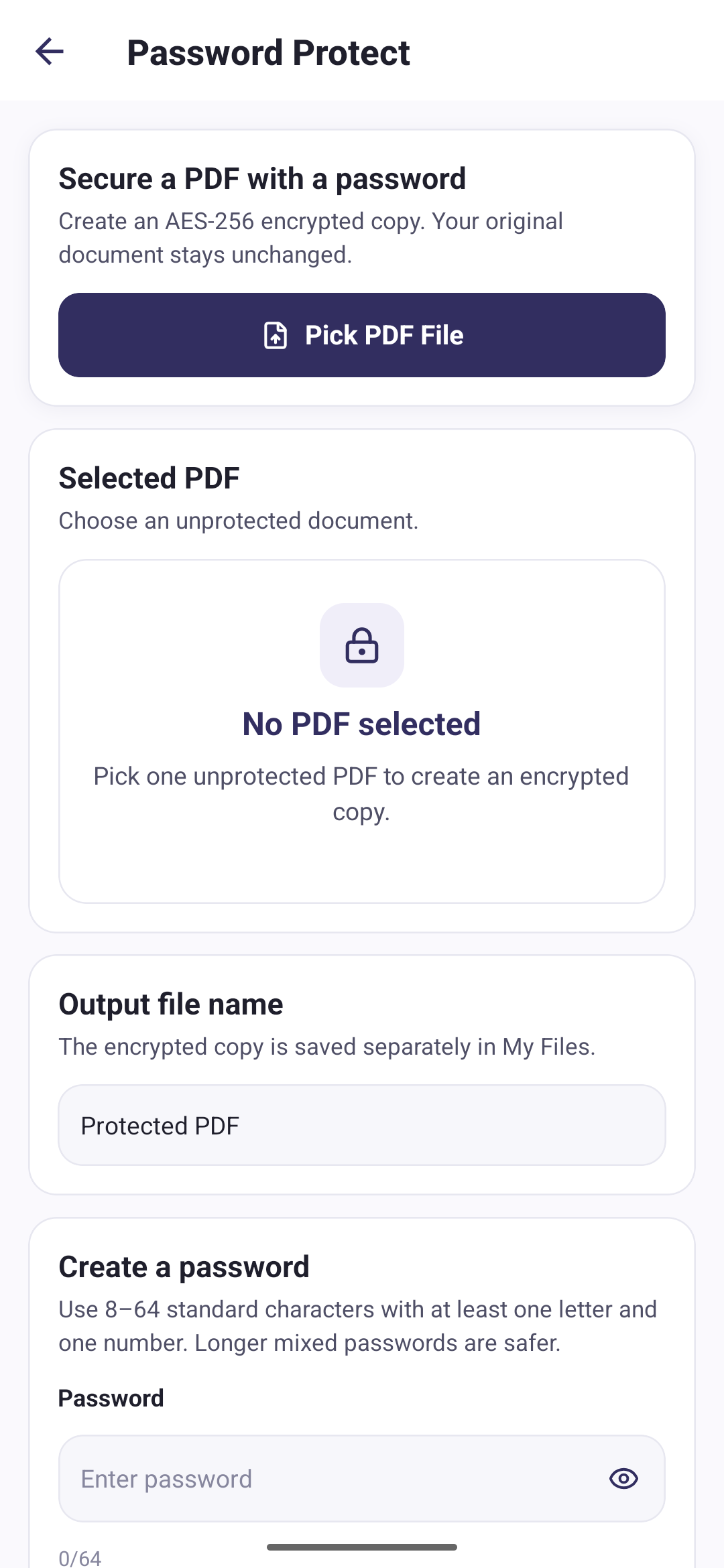
- Pick the PDF. It has to be an unprotected document. A file that already has a password cannot be re-encrypted, because the app cannot read inside it to begin with.
- Name the output. The encrypted version is saved as a separate file, so you choose what it is called. The default is Protected PDF.
- Create a password. Between 8 and 64 standard keyboard characters, including at least one letter and one number. A strength indicator reacts as you type.
- Confirm it. The second field has to match. Since there is no recovery path, this is the only spelling check you get.
Encryption runs on the phone. The PDF is never uploaded for processing, which also means the operation does not depend on a connection and the contents of the document are not exposed to a server along the way. The privacy policy sets out what that means in detail, including the fact that the password itself is never stored, logged, or transmitted.
Choosing a password worth using
Length does more work than character variety. The US National Institute of Standards and Technology sets a floor of at least 8 characters for user-chosen passwords, and explicitly advises against forcing mixtures of character types, on the grounds that composition rules push people toward predictable substitutions like P@ssw0rd.
Practical translation for a document you are about to send:
- Go well past the minimum. Four unrelated words are easier to read down a phone line than eight random characters, and far harder to guess.
- Do not reuse a password you use elsewhere. This one gets typed into an unknown device by a recipient you do not control, and may sit in their email forever.
- Do not derive it from the document. The client's name plus the year is the first thing anyone tries.
- Write it down somewhere retrievable. A password manager entry attached to the recipient, not a sticky note on the file itself.
What happens to the file you started with
Nothing. The encrypted document is written as a new file and saved separately, and the PDF you selected stays exactly as it was. You end up with two documents: the readable original and the protected copy.
That is usually what you want, because it gives you a way back if the password is mistyped or forgotten. It also means the unprotected version is still sitting on your phone, so if the whole point was that this document should not be readable, delete the original once the protected copy is confirmed working. You can remove individual files from My Files when you no longer need them.
Sending a protected PDF without undoing the point
Send the password through a different channel than the document. An encrypted attachment and its password in the same email is the security equivalent of taping a key to the door: anyone who reaches the message reaches both halves.
Reasonable splits, in rough order of effort:
- Document by email, password by phone call or text message.
- Document by email, password by a messaging app the recipient already uses.
- Document by email, password agreed in person beforehand.
Agreeing the password in advance has a useful side effect: you never transmit it at all, which means there is no copy of it to leak later.
Protect last, not first
An encrypted PDF cannot be read by the tools that would normally act on it. Once a document is protected, PDF Tools can no longer merge it, compress it, split it, or run text recognition over it, because all four need to read the page content and the encryption is doing its job.
So sequence the work. Assemble first, protect last:
- Create or import every document you need.
- Merge them into the single file you intend to send.
- Reduce the size if the file is too large to attach. The guide on reducing PDF file size on Android covers when that is worth doing.
- Encrypt the finished document.
Doing it the other way round means decrypting somewhere else, or starting again from the original. This is the single most common reason people repeat the job.
Common mistakes
- Sending the password in the same message as the file.
- Protecting the document before merging or compressing it, then having to start over.
- Leaving the unprotected original in a shared or synced folder.
- Using a password derived from the document's own contents or file name.
- Never testing the protected copy. Open it once and type the password before you send it.
- Treating encryption as redaction. A password controls who opens the document, not what they see once it is open.
Where to start
Finish the document first, then encrypt it, then send the password by a different route. Pick something long enough that guessing is hopeless and store it where you will still find it in six months, because a protected PDF with a forgotten password is simply a lost file.