
A PDF that opens instantly on your phone can still be too big to send. The mail app rejects the attachment, an upload form refuses the file, or a chat app spends a minute on something that should have taken seconds. The usual fix is not a different app. It is working out which part of the document is taking up the room.
This guide covers what actually makes a PDF large, the two moments where you can control its size on an Android phone, how to confirm that a compression attempt worked, and why some documents barely shrink no matter what you try. The examples use PDF Tools, an Android app that creates and compresses PDFs on the device itself, but the reasoning applies to whichever PDF app you already have.
Why PDF files get larger than you expect
A PDF weighs roughly what it carries, and in practice what it carries is images.
- Photos of documents. A current phone camera produces a photo of several megabytes. Wrap eight of those in a PDF and the document runs to tens of megabytes, even though it reads as eight ordinary pages.
- Scanned pages. A scan is a picture of text, not text. A scanned contract is far heavier than the same contract exported as a text-based PDF.
- Combined documents. Merging is not compression. Combining files adds their contents together, so a merged PDF is roughly the sum of its parts.
- Text and fonts. These barely register. A text-only PDF of a long report is often well under a megabyte.
That last point is the one worth carrying forward. If a PDF is large, look for images. If it has none, there is very little left to take out, which is the main reason compression sometimes appears to do nothing at all.
Where to check a PDF's real file size
Check the size in the app that holds the file. Guessing from the page count or the preview will only mislead you. In PDF Tools, opening a document shows a PDF Details screen with the exact file size, when it was created, and how it came to exist.
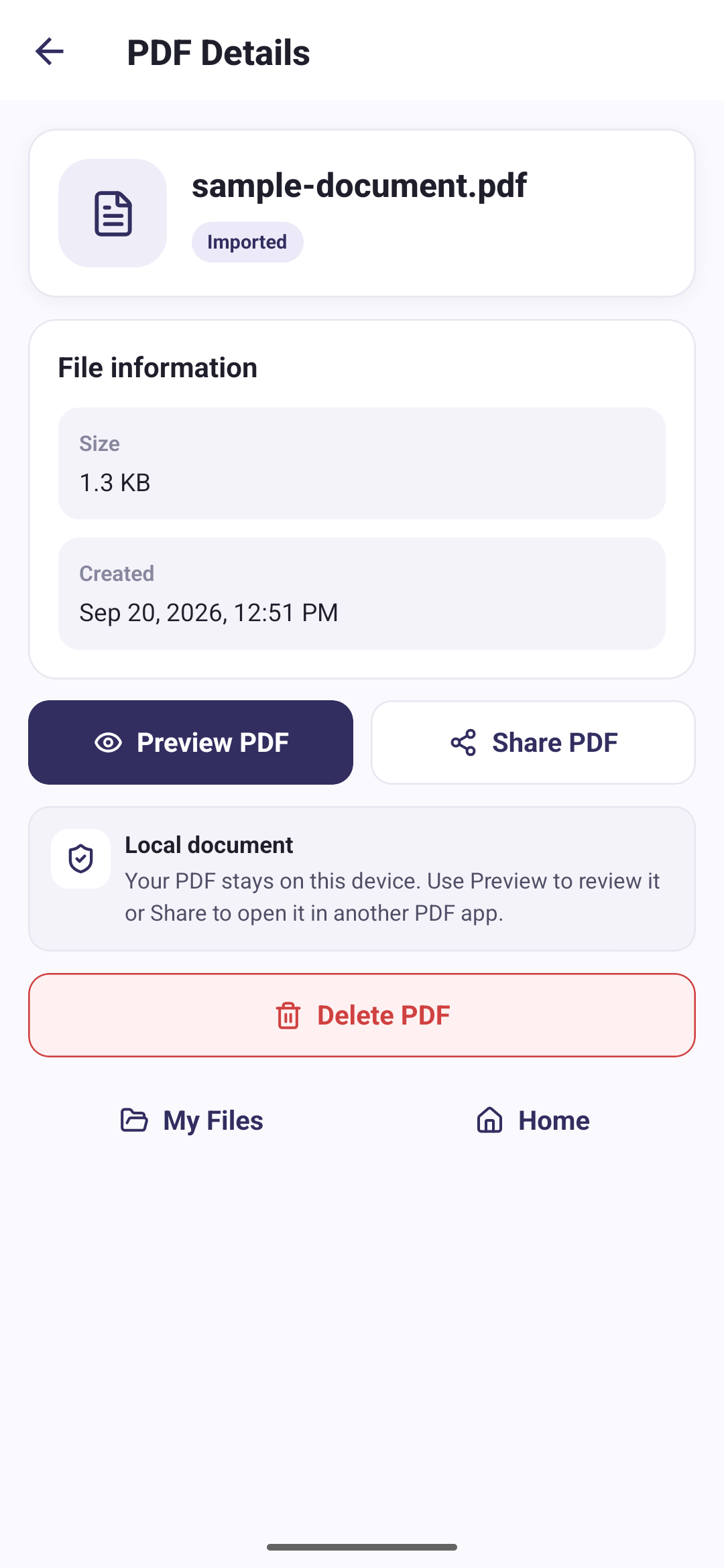
Knowing the starting figure matters, because how large is too large depends entirely on where the file is going. On personal Gmail accounts, everything attached to one message has to total 25 MB or less. Plenty of web upload forms cap individual files below that. A 900 KB document does not need compressing; a 30 MB one does.
Four ways to make a PDF smaller on Android
Which one applies depends on whether the document already exists, and on whether it has to keep its detail.
1. Compress the PDF you already have
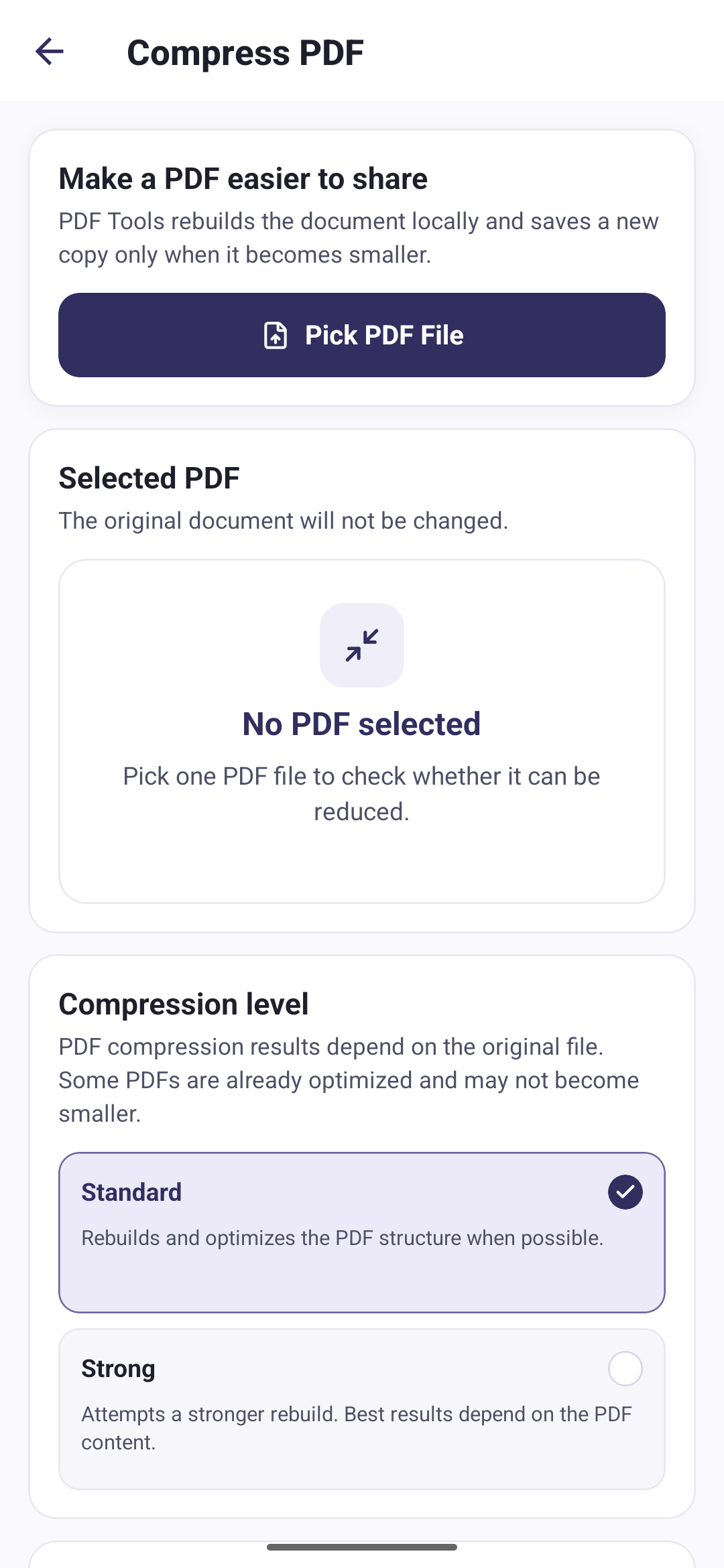
Compression rebuilds the file's internal structure and re-encodes what it can, without you having to recreate the document. In PDF Tools, Compress PDF works on one PDF at a time: you pick the file, choose a level, and the app writes the reduced version as a new document. It runs on the phone, so files are processed locally instead of being uploaded, and a slow connection has no bearing on how long it takes.
2. Create the PDF small in the first place
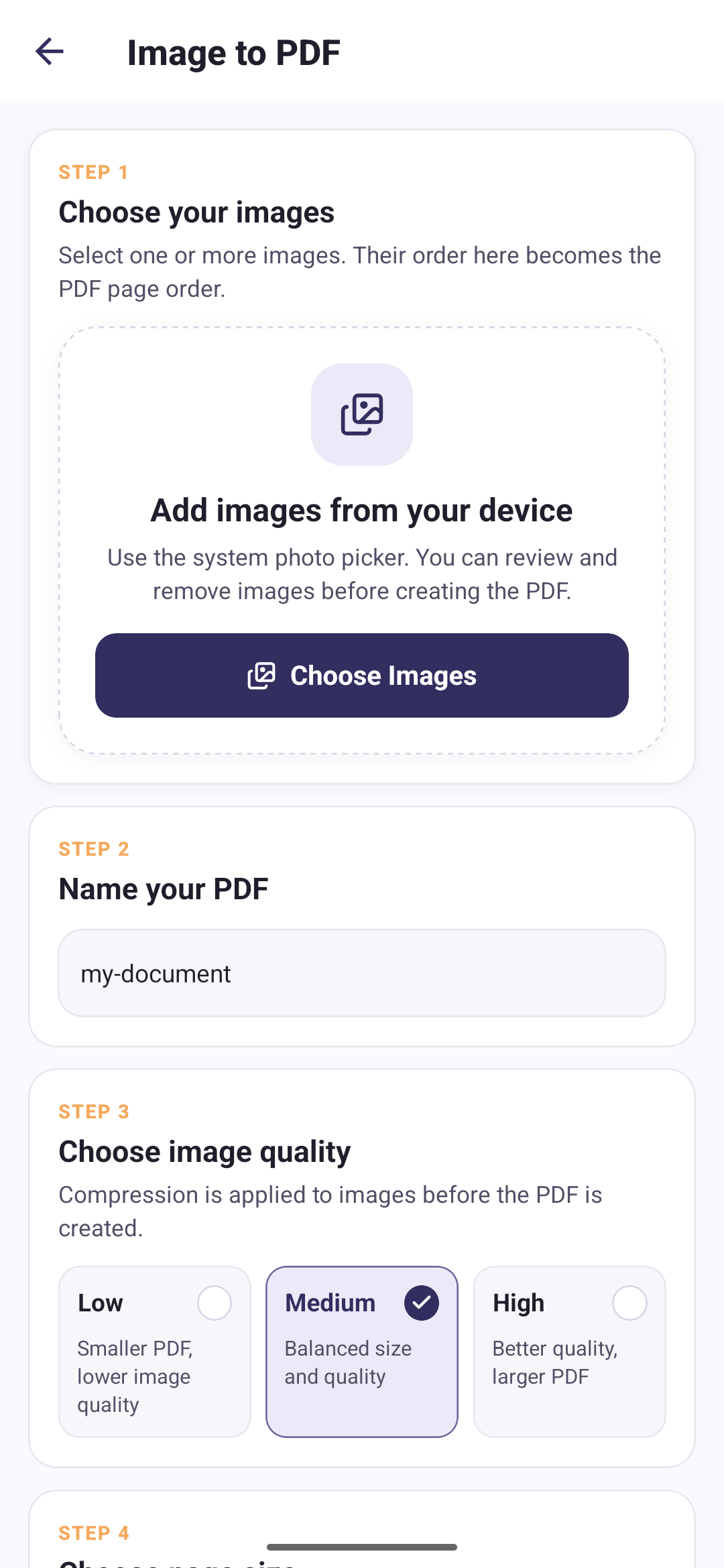
When you are the one building the document from photos, the quality you choose at that moment does more than any compression pass afterwards. Image to PDF compresses the selected images before it assembles the file, and offers three levels:
- Low gives a smaller PDF at lower image quality.
- Medium balances size against quality.
- High keeps better quality and produces a larger PDF.
Page size plays a part too. A4 and Letter place each image on a fixed page; Fit Image matches every page to its own image instead. Dropping from High to Medium costs detail you may never need in a document that will only be read on a screen.
3. Include only the pages you need
The cheapest page is the one you leave out. If you are assembling a document from images, select only the photos that belong in it. If you are combining files, merge only the documents the recipient actually needs, not everything related to the job.
PDF Tools can also help after the fact: Split PDF saves every page of a document as its own file, so you can send just the two pages someone actually asked for instead of the whole report.
4. Send a link when the file has to stay large
Some PDFs should not be compressed at all. A signed contract, a technical drawing, or a print-ready file loses something real when its images are re-encoded. If a document has to keep its detail and is still too big to attach, upload it once to whatever cloud storage you already use and send the link instead. Either way, sharing a PDF from your phone works the same: open the document and hand it to Android's share options.
Why compression sometimes barely changes the file size
Because there may be nothing left to remove. Compression works by re-encoding images and rebuilding the file's structure, so a PDF that is already optimised, already free of images, or built from scans that were compressed before they ever reached it has almost no slack in it. A small reduction, or none at all, is a normal outcome. It is not a failure.
- The document is mostly text. Text and font data are compact to begin with.
- Its images are already compressed. Phone camera photos are usually JPEGs. Re-encoding a JPEG that was saved at a modest quality gains very little.
- Something already optimised it. Many print-to-PDF exports and scanner apps compress on the way out, which leaves a second pass with nothing to find.
- The file is protected or damaged. Password-protected and corrupted PDFs cannot be rebuilt reliably. PDF Tools notes the same limitation when merging PDF files.
Running compression again on a result you already compressed rarely helps. Each pass gains less than the one before, while re-encoding the same images another time.
Standard or Strong: which compression level to use
Start with Standard. It is the more conservative option and is enough for many documents. Move to Strong only when Standard has not reduced the file far enough, and check the result before you rely on it.
Standard
Rebuilds and optimises the PDF structure when possible.
You want the safer first attempt, or the document mixes text with a handful of images.
Strong
Attempts a stronger rebuild. The best result depends on the PDF's content.
Standard left the file too large and the document is heavy with photos or scans.
How to confirm the compressed file is actually smaller
The app does the arithmetic for you the moment it finishes. The confirmation message reports the original size, the new size, and the percentage saved, and opening the document's details screen from it shows those same three figures side by side under a compression summary. That is the fastest answer to whether the pass was worth keeping.
That summary belongs to the moment, though, not to the file. It is handed over by the compression itself, so reopening the same document later from My Files shows its current size and nothing to compare it against. If the percentage matters to you, read it while it is in front of you.
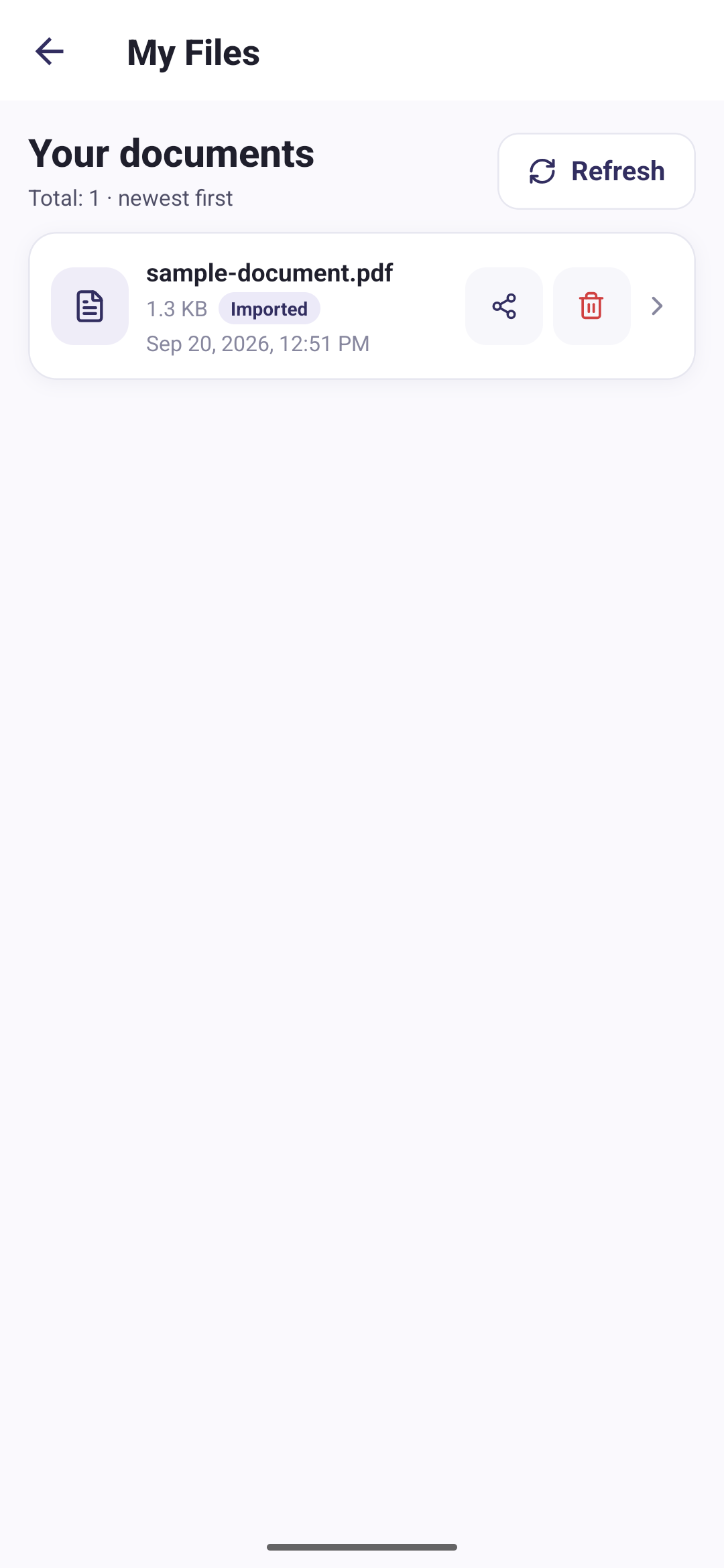
After that, compare the two figures directly. My Files gives every document its own row carrying the file size and a label for how it came to exist, reading Generated, Imported, Merged, Compressed, Split, or Protected, so the compressed copy and the file you started from each state their own size in the same list.
Two habits separate a smaller file from a smaller file you can actually use:
- Open the compressed PDF before sending it. A stronger rebuild can soften scanned text enough to matter, and a thumbnail will not show you that.
- Keep the original until the new version is confirmed good. Compressed output arrives as its own entry, so both files exist until you delete the one you no longer need.
Common mistakes when shrinking a PDF
- Deleting the original before checking the compressed copy. The reduced file is the one you cannot undo.
- Generating at High quality and compressing afterwards instead of generating at Medium. The second route reaches a similar place in one step and re-encodes the images once.
- Compressing the same document over and over. Every extra pass gains less and costs more image quality.
- Judging the result from a thumbnail. Open it and zoom to the smallest text that matters.
- Expecting a text-only PDF to shrink. There is usually nothing there to take out.
- Compressing documents that have to stay exact, such as signed, legal, or print-ready files.
Where to start
Read the document's real size first, then pick the lever that fits it. PDFs you are creating yourself are cheapest to fix at creation time, with the quality setting. PDFs that already exist are a job for compression, Standard before Strong. And when a file genuinely has to keep its detail, sending a link beats degrading it.